Many people think Codex is just “another coding tool.”
But after this tutorial, you’ll find it resembles a growing AI workstation.
It’s not just chatting or modifying code.
It has integrated project management, drawing, browser testing, Git, cloud execution, memory, plugins, Skills, MCP, deployment, and computer automation.
In simple terms:
Codex App is evolving from a “code assistant” to an “AI employee capable of taking on tasks.”
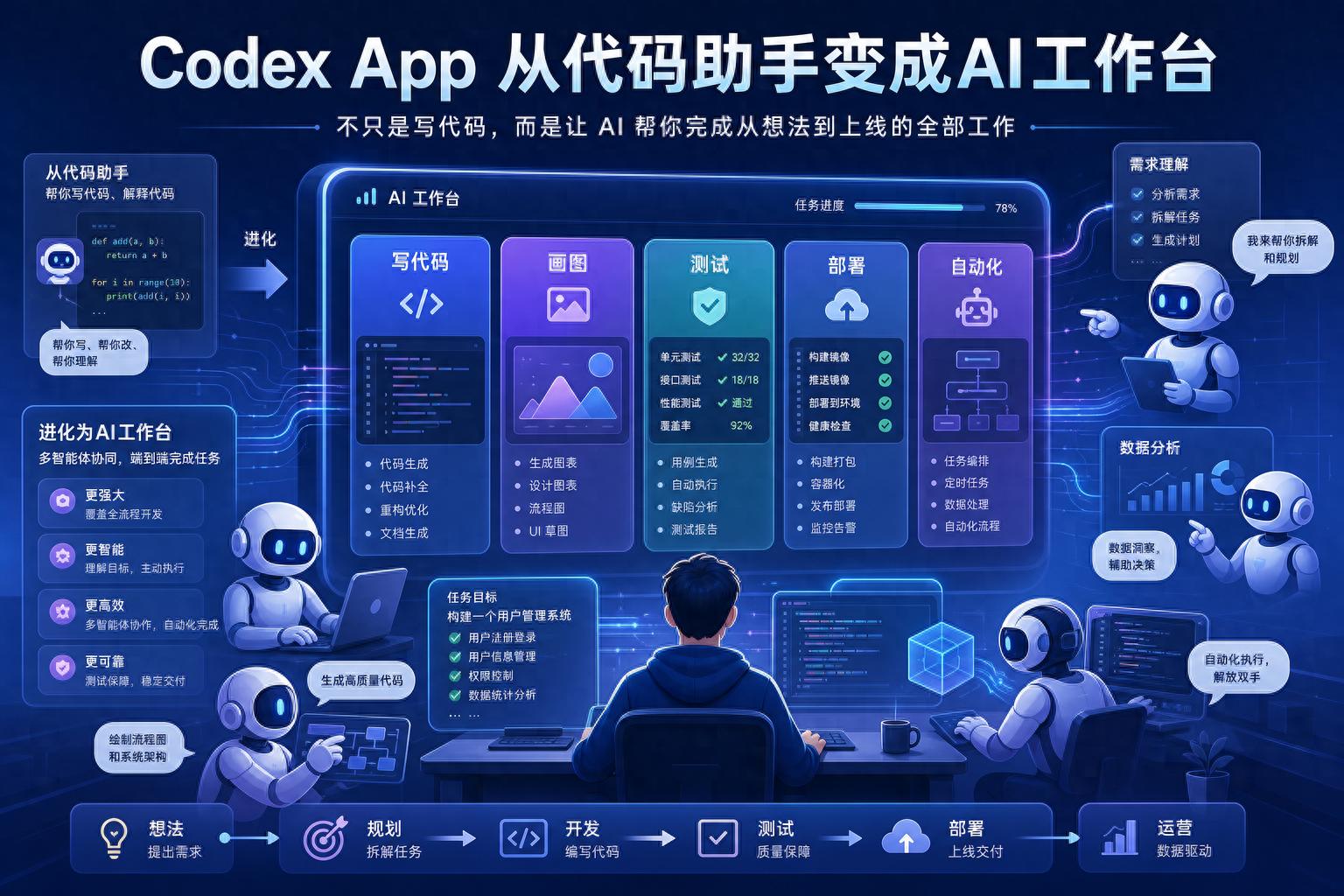
First Impressions: Running Multiple Tasks Simultaneously
The video first demonstrates the basic interface of Codex App.
On the left is the task list, in the middle is the chat window, and on the right is the multifunctional area.
This three-column layout is crucial.
You can open multiple projects at once, allowing Codex to work in parallel.
For example, one task can create an HTML single page, another can build a React to-do reminder tool, and a third can specifically answer technical questions.
Each task has a status:
- In progress
- Awaiting approval
- Completed
This is not like a traditional chat window.
Traditional chatting feels like talking to one person.
Codex App resembles a small office with several AI workers simultaneously present.
You only need to check the task list to know who is working, who is stuck, and who has completed their task.

Second Key Point: Permissions Are Not Arbitrarily Granted
The security design of Codex App revolves around a “sandbox.”
It treats the current project folder as a sandbox.
By default, Codex can read and modify content within the project folder but cannot access external files or connect to the internet without permission.
If it needs to go online, download dependencies, or modify files outside the sandbox, it must request permission.
This is crucial.
The stronger the AI’s coding capabilities, the more it should be restrained from operating freely on the computer.
Just like a powerful horse needs reins.
Codex’s sandbox, permission approval, and automatic review serve as those reins.

The tutorial recommends using the “automatic review” mode.
Low-risk operations are automatically approved, while high-risk operations require user confirmation.
This approach minimizes interruptions while preventing complete loss of control.
Third Highlight: It Can Create Images and Modify Web Assets
The video presents a straightforward case.
Codex created a webpage for a pet grooming shop, but the images of the store’s interior and map were unsuitable.
So, the author directly instructed Codex to generate new interior carousel images and replace them on the webpage.
Later, they provided a screenshot of the store’s location, prompting Codex to regenerate a cute, fresh pet-themed map.
A useful detail here:
If Codex misunderstands, it shouldn’t be allowed to continue down the wrong path.
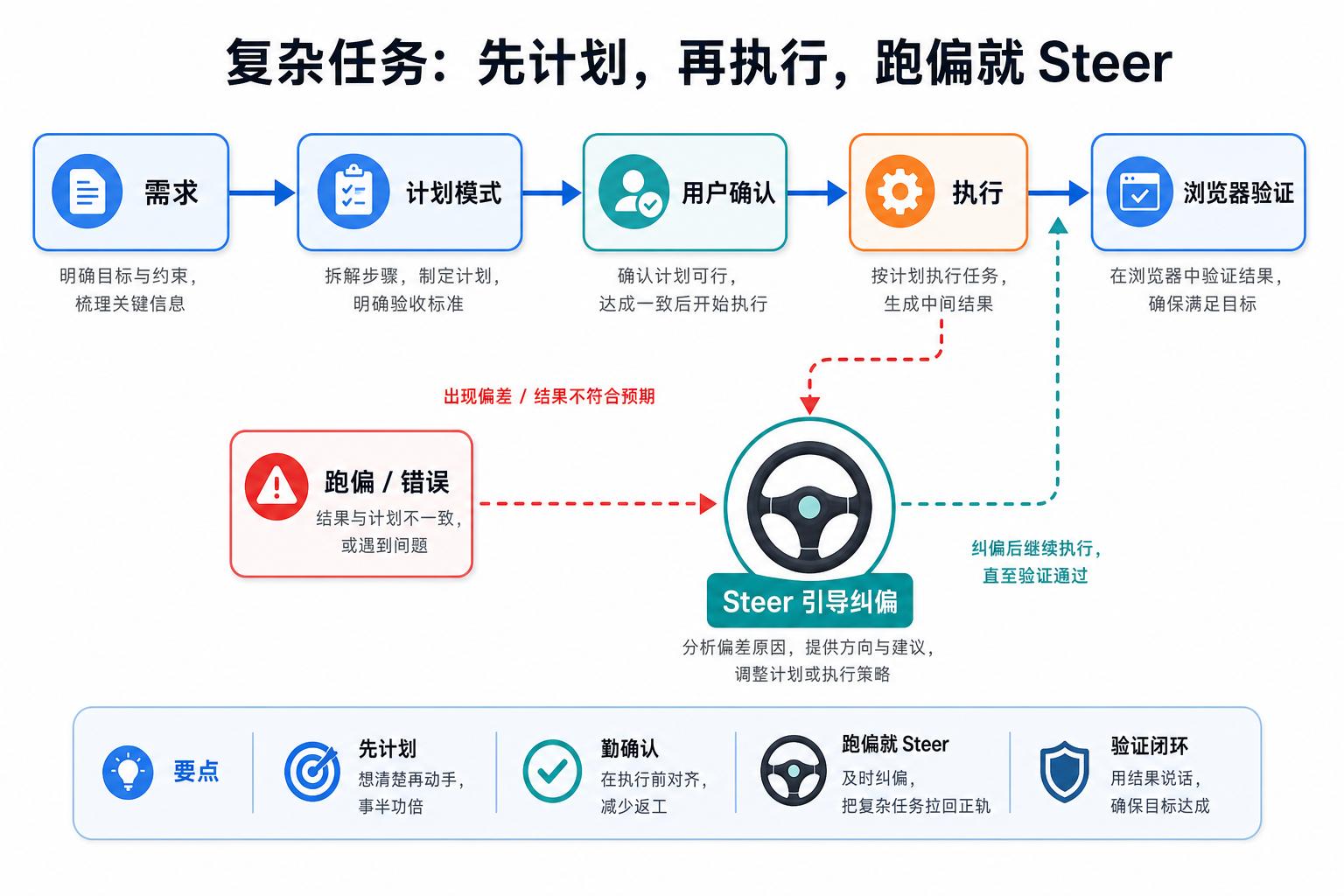
The video mentions a feature called Steer, which allows you to take the wheel while the AI is running a task.
For example, if you realize it shouldn’t use SVG to draw the map but should instead leverage AI-generated images, you can interrupt and correct it immediately.
This is critical for practical use.
AI is not a one-time wish machine.
It’s more like an intern; you need to monitor its direction and pull it back if it strays.
Complex Tasks Should Start in Planning Mode
The video emphasizes planning mode.
Once planning mode is activated, Codex won’t immediately start modifying code; instead, it will first output a work plan.
For instance, when transforming a project to the Next.js framework, it will ask you several key questions:
- What project form to choose?
- How to handle files during migration?
- Should local services be started for verification?
After confirming the plan, it will begin execution.
This avoids a common issue:
If the AI starts modifying immediately, you might only realize it misunderstood after the fact.
Thus, for complex tasks, it’s best to have it draft a plan first.
Once you’ve confirmed the direction, let it proceed.
In summary:
Small tasks can be executed directly, while large tasks should be aligned first.
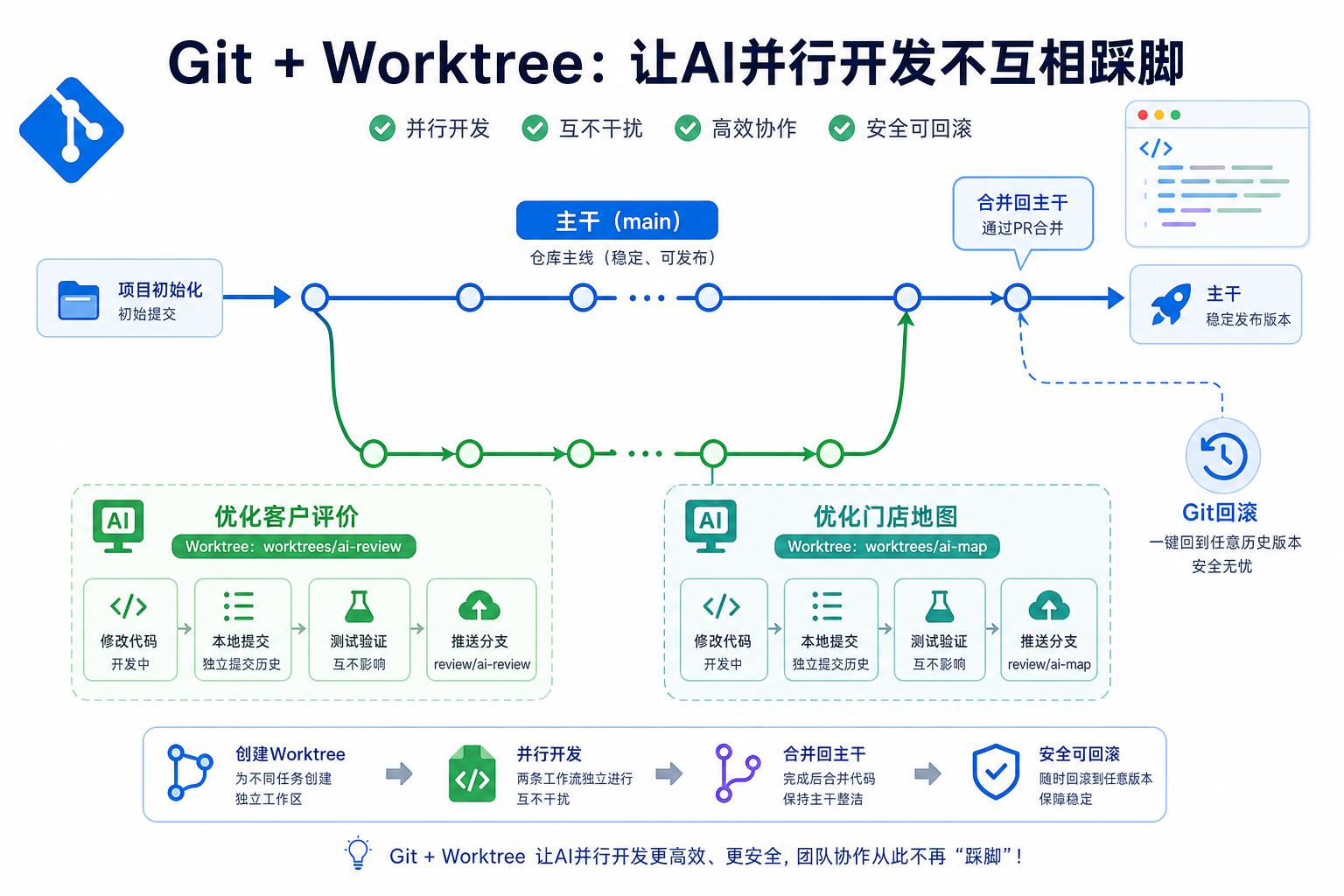
Git and Worktree Are Key for Advanced Users
The tutorial also covers a practical aspect: managing Codex’s development process with Git.
Since AI can modify code quickly, it may not always align with your preferences.
Therefore, after completing each phase, you should commit to Git.
If you later find something broken, you can roll back.
The video also demonstrates a sophisticated yet practical feature: Git Worktree.
It allows you to create multiple independent branch folders for the same project.
For example, one branch can optimize customer reviews while another can enhance the store map.
Two Codex tasks can run simultaneously without interfering with each other.
Finally, you can merge the results back into the main branch.
This is akin to assigning two workstations to the AI.
One person renovates the living room, while another works on the kitchen, avoiding overlap.
This capability is invaluable for complex projects.
Cloud Mode for Mobile Approvals
Codex tasks don’t have to run only on local computers.
The tutorial showcases a cloud execution environment.
The prerequisite is to sync the code to GitHub.
Then you can have Codex modify code and create Pull Requests in the cloud, followed by reviewing and merging on the GitHub page.
When is this scenario useful?
It’s suitable for when you’re away from your computer but want to advance a small task.
For instance, if you’re out and only have your phone, you can quickly check the AI’s submitted changes and merge them if everything looks good.
The local computer handles heavy lifting.
Cloud mode facilitates task progression anytime, anywhere.
Memory System Prevents Codex from Starting from Scratch Each Time
One frustrating aspect of AI in projects is:
Every new conversation feels like starting from scratch.
Thus, the video discusses a crucial file: AGENTS.md.
You can write the project background, tech stack, personal preferences, and important notes in it.
Subsequently, Codex will read this file at the start of each new conversation.
For example, if the author notes:
They don’t understand CSS and need simple explanations for styling issues.
Codex will tailor its responses accordingly in future interactions.
This essentially acts as an “employee manual” for the AI.
Project-level AGENTS.md manages the current project.
Global AGENTS.md manages all projects.
If you use Codex long-term, this file becomes essential rather than optional.
Plugins, Skills, and MCP: Connecting to the Outside World
The latter part of the tutorial focuses on expanding capabilities.
Plugins allow Codex to connect with services like GitHub, Gmail, and browser automation.
For instance, it can check GitHub project data and send summaries to Gmail.
You can even automate this process to run weekly.
Skills function like “professional skill packages.”
For example, the Remotion skill enables Codex to generate animated videos programmatically.
You can also create a Skill to automate the process of converting “video + subtitles to text notes.”
In the future, whenever faced with similar tasks, you can directly call this Skill.
MCP serves as a standardized toolbox.
The video demonstrates using Supabase MCP to add backend database functionality to a project.
Codex can create data tables, modify backend interfaces, connect databases, and test form submissions.
This indicates that Codex is not just about writing front-end pages.
It can connect real services through tools, completing an entire product workflow.
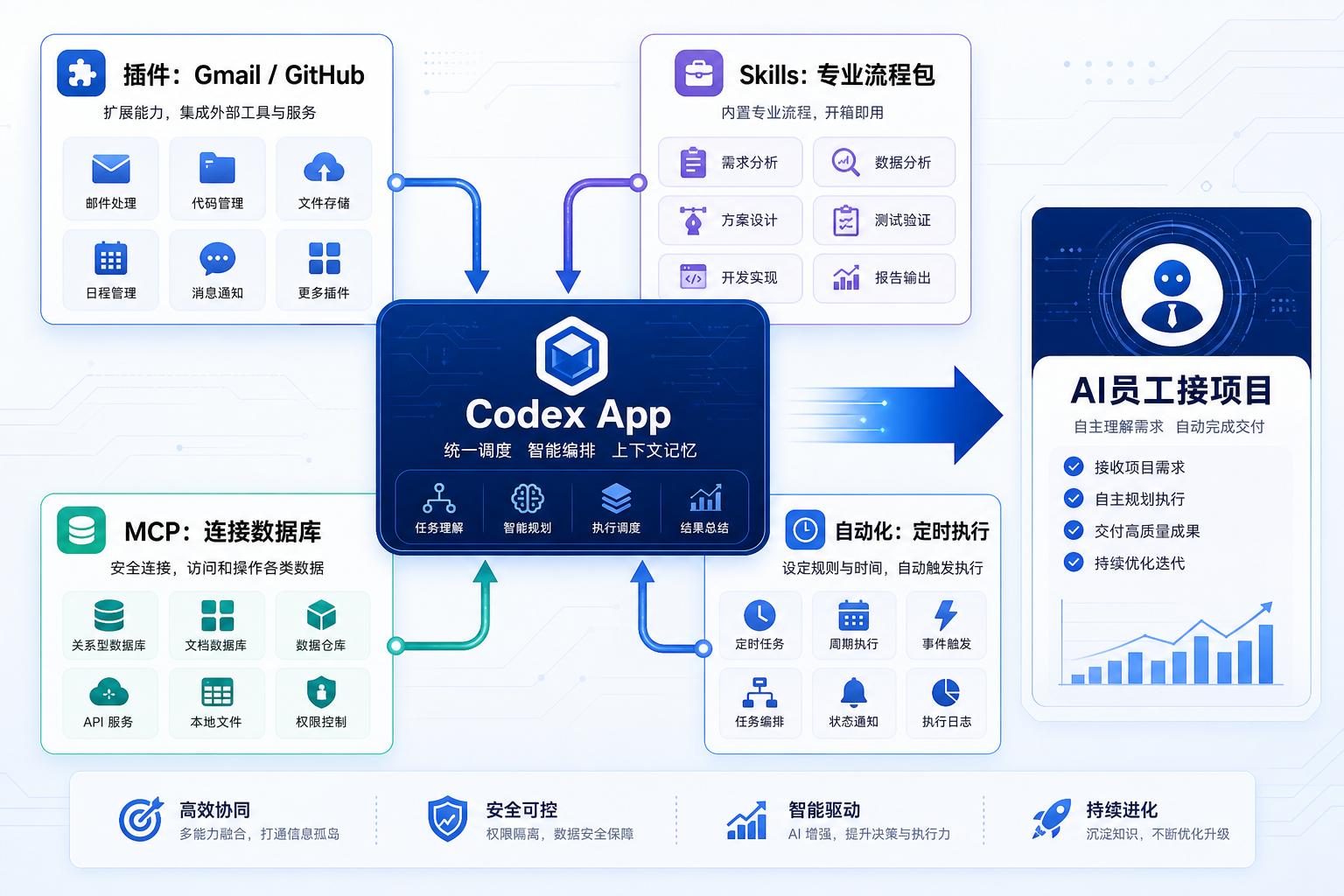
Finally, Computer Automation
The video concludes with a demonstration of Computer Use.
This feature is currently primarily available on Mac.
Codex can operate the browser, open chat software, check project boards, summarize progress, and send reports to the boss.
Even more impressively, this process can be automated on a schedule.
For example, it can automatically check the board every day at 5 PM, compile an English report, and send it out.
This is the most noteworthy aspect of Codex App:
It’s not just about “answering questions.”
It is beginning to “operate computers.”
Once this capability matures, the form of AI tools will change.
Previously, we opened software and clicked buttons ourselves.
In the future, we might simply give the AI a goal and let it complete processes across different software.
What Should Ordinary Users Remember?
This tutorial contains a lot of information, but I believe the core points boil down to three sentences.
First, Codex App is no longer just a code chat tool.
It is integrating development, testing, deployment, automation, and tool invocation into one workstation.
Second, complex tasks must be planned first, then executed, and finally verified.
Planning mode, browser testing, and Git rollback are not just extra features; they are safety measures to prevent the AI from breaking the project.
Third, AGENTS.md, Skills, and MCP will determine how deeply you can utilize it.
Simply chatting is superficial use.
Being able to provide it with rules, skills, and external tools is how you can truly leverage Codex as an AI employee.
In summary: The real strength of Codex App lies not in “better coding,” but in its evolution into a workspace capable of taking on projects, using tools, and automating tasks.
Comments
Discussion is powered by Giscus (GitHub Discussions). Add
repo,repoID,category, andcategoryIDunder[params.comments.giscus]inhugo.tomlusing the values from the Giscus setup tool.